
95% of My Work Happens in VS Code
Word, Excel, PowerPoint, SPSS, R Studio — I don't use any of them anymore. Here's how VS Code with AI assistants replaced a dozen separate apps and made me dramatically more productive.
Right now, as I write this, my desktop has six VS Code windows open. One for this article. One for a course I’m developing. One for a data analysis pipeline. One for a research paper draft. One for a custom tool I’m building. One for meeting prep. Behind them, a browser with a dozen tabs and my email. That’s it. That’s my entire workstation.
Word, Excel, PowerPoint, SPSS, R Studio, Endnote, even Overleaf in the browser — I barely use any of them anymore to actually do my work. And I don’t miss them.
Why VS Code?
VS Code is a free, open-source code editor made by Microsoft. But calling it a “code editor” undersells it — it’s a general-purpose working environment that handles text, code, data, notebooks, terminals, and extensions for almost anything you can imagine.
Here’s why I use it instead of a dozen separate apps:
- It’s free. Completely free. No subscription, no license, no “educational pricing.” Just download it and start working.
- AI assistants live inside it. GitHub Copilot, Claude, and other AI coding assistants integrate directly into VS Code. The AI sees your files, understands your project context, and helps you in real time — not in a separate chat window, but right where you’re working. And beyond the editor, CLI tools like Claude Code, OpenAI Codex, and Google Gemini CLI bring even more powerful agentic capabilities right into your terminal.
- Everything is a text file. Markdown for writing. LaTeX for papers. Python or R notebooks for data analysis. HTML for presentations. CSV for data. When everything is text, everything is searchable, versionable, and portable.
- One environment, zero context-switching. No more bouncing between Word for writing, Excel for data, PowerPoint for slides, and a stats package for analysis. It’s all in one place.
And if you’re an academic or student: sign up for GitHub Education. You get GitHub Copilot for free, plus a stack of other developer tools. You don’t need to become a full software developer to work this way, and there’s no reason to pay for Cursor, Windsurf, or any other premium AI coding tool when VS Code gives you everything you need — for free — especially with an academic GitHub account.
That said, once you start using AI assistants for everything, you may find that a paid or pro subscription is worth it for access to the best models. Full disclosure: I use the free or basic tiers for OpenAI and Gemini models, but I pay for Claude — primarily through their CLI (command-line interface) tool, Claude Code (stay tuned for a blog post about switching to CLI tools in the future) — because I find it’s the best for my purposes. You absolutely don’t need to pay for anything to get started, but as your usage grows, the upgrade pays for itself quickly.
What I Actually Use It For
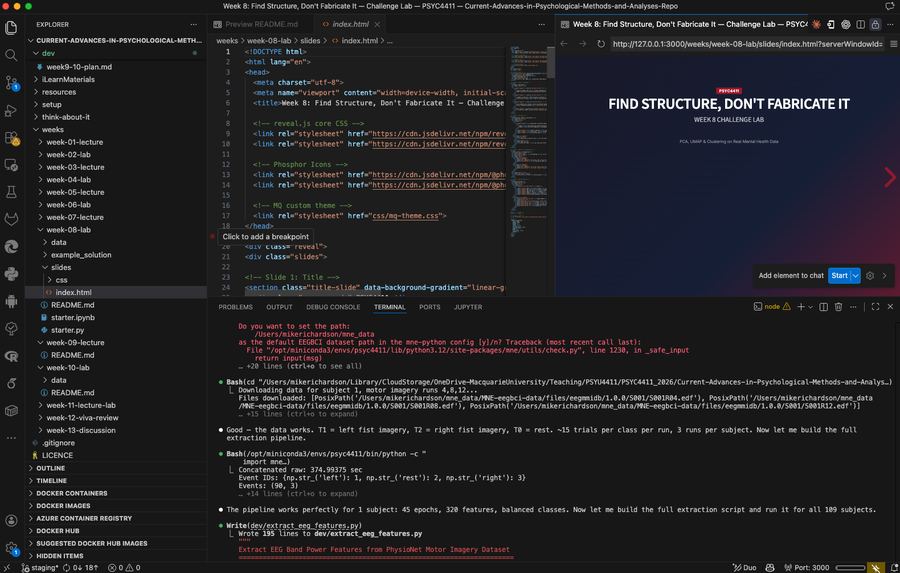
Writing
Papers, course materials, blog posts, grant applications, reviews — I write all of it in Markdown inside VS Code. Markdown is plain text with simple formatting: **bold**, *italic*, # Heading. It takes five minutes to learn and works everywhere.
For papers that need LaTeX, I use the Overleaf extension — I can edit my Overleaf projects directly inside VS Code, with the AI assistant helping me write and debug LaTeX without ever opening a browser tab. Same files, same workflow, same environment.
Why not Word? Because Word files are opaque blobs that break version control, create formatting nightmares when you collaborate, and lock your content into a proprietary format. Markdown is clean, portable, and plays perfectly with git. When I need a formatted PDF or Word document for submission, I convert with a single command using Pandoc.
The AI assistant helps here too. I’ll dictate ideas, sketch rough paragraphs, and then ask the AI to tighten the prose, check the structure, or reformat a section. It’s like having a tireless copy editor sitting next to you.
Data Analysis
Jupyter notebooks and Python scripts inside VS Code. Python, pandas, matplotlib, seaborn, scikit-learn — all running in the same editor where I write my papers. I can go from raw data to publication-ready figures without leaving the window.
The AI assistant handles everything from simple queries — “I have a repeated-measures dataset in data/experiment1.csv with columns: participant_id, condition (A, B, C), reaction_time, accuracy, and session. There are three within-subject conditions, some participants have missing sessions, and reaction_time has a right skew. Write me a linear mixed-effects model in Python using statsmodels, with participant as a random intercept, condition as a fixed effect, and Bonferroni-corrected post-hoc pairwise comparisons. Include a check for normality of residuals.” — to complex tasks like writing a full multilevel modelling pipeline, building cross-validation workflows, or refactoring a messy analysis script into something clean and reproducible. It writes the code. I review it, run it, and iterate. It’s particularly good at catching statistical mistakes I might have glossed over.
I haven’t opened SPSS, Stata, or any other statistics application in years. R Studio occasionally, but increasingly I run R inside VS Code too.
Lecture Slides and Course Content
I’ve written about this in detail — I code all my lecture slides in HTML using reveal.js and AI assistants. But the slides are just part of it. Course reading guides, assignment briefs, rubrics, student resources — all written in Markdown or HTML inside VS Code, all version-controlled in git, all generated and updated with AI assistance.
And here’s a bonus: if your university uses an online learning platform like iLearn, Canvas, or Blackboard, HTML is the perfect format. You can copy and paste your HTML directly into the platform and your content looks amazing — super professional, beautifully formatted — for almost no extra work. No more spelling mistakes from retyping, no more wasting time fighting the horrible built-in text editors on these platforms.
Editing and Reviewing
When I review a paper or edit a colleague’s draft, I have the PDF or document open — often outside VS Code to ensure my AI agents don’t have direct access to it — and dictate my comments into a Markdown file as I read. I reference page numbers or line numbers as I go, building up a structured set of notes. Once I have my raw comments, I ask the AI assistant to help me draft the review — articulating my critique clearly, tightening the language, and making sure I haven’t missed anything. It can double-check claims or search for references to verify a point I’m unsure about.
For grant reviews, if there’s a set of criteria, I paste those into the file too. The AI helps me make sure I’ve addressed every criterion systematically — nothing falls through the cracks.
An important note on privacy: I don’t feed the paper or grant itself to the AI — only my own comments and notes. This ensures the original content stays private and no confidential data is shared to the cloud. If I do need the AI to read a paper directly — a student’s work, a colleague’s draft, a manuscript I’m reviewing — I use a local model running on my own machine, so nothing leaves my computer.
For my own writing, I often dictate entire sentences or paragraphs (I have an article and guide coming on using voice-to-text rather than a keyboard to interact with your AI agents) and then have the AI assistant edit and proofread. It spots weak arguments, tightens wordy prose, and identifies gaps in my reasoning. And since I use Overleaf and LaTeX for most papers, I link the project directory in VS Code and work on it from there — I don’t even need to open Overleaf in the browser.
Building Custom Tools
This is where things get interesting. Because VS Code is a coding environment, I don’t just use existing tools — I build the ones I need.
I’ve built web apps to streamline marking and grading systems, reducing the workload on colleagues through automation and database management. I’ve built tools for automating meeting agendas, generating formatted reports from raw data, processing student submissions, and integrating with university systems. I built a benchmarking tool that scrapes publication and grant funding data from online sources, processes and analyses it, and generates figures and presentation slides — ranking my school against every other psychology school in Australia to identify our strengths and where we need to improve. None of these needed to be polished products — they’re quick, practical tools that solve real problems.
Here’s the thing: I’ve been coding for near 40 years, but what used to take me weeks or even months to develop I can now do in hours or days. The AI assistant makes building these tools so fast that it’s worth doing even for one-off tasks. That speed change is hard to overstate — it’s not a marginal improvement, it’s a fundamentally different relationship with what’s worth building.
Everything Else
Ideas for research projects. Brainstorming sessions. Conference abstracts. Reference management. To-do lists. If it involves text or code — and almost everything does — it happens in VS Code.
The Desktop
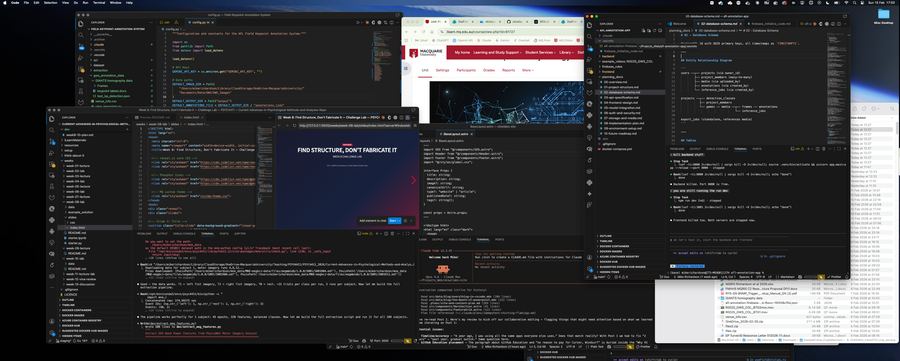
As noted above, most days my screen looks like this: five or six VS Code instances, a browser with multiple tabs, and email or Teams. That’s the entire setup. I barely use any other application. And when I do need to interact with some external system — a university portal, a project management tool, a specific file format — I’ll often build a small integration script rather than switch to another app.
This isn’t about being a minimalist. It’s about speed. Every time you switch from one app to another, you lose context. You wait for it to load. You remember where you left off. You find the right file. Those transitions add up to hours every week. When everything lives in one environment, with one set of keyboard shortcuts, one search function, and one AI assistant that understands your whole project — you move fast.
”But I’m Not a Programmer”
You don’t need to be. I’m a cognitive scientist, and yes — I’ve been coding since I was 10 years old. But you don’t need to be a coder to work this way. Most of my research students in psychology have never written a line of code before they start working with me. Within a week or two, they’re converted to a similar setup and up and running. I even get my undergraduates up and running in VS Code in a single one-hour lab, and by the end of the semester they’re AI-assisted productivity pros — and, importantly, they know how to use these tools to enhance their critical thinking and problem-solving skills, not bypass them. (I write more about this in a related article.)
The AI assistant is the key. It means you don’t need to memorise syntax or commands. You describe what you want, the AI writes the code, and you learn by doing. Over time, you pick up enough to work faster, learn to understand and follow the code, and without even knowing it actually become a coder — but you never need to become a software developer.
If you can write an email, you can use VS Code. The learning curve is real — budget an hour or two to get comfortable — but the productivity gain on the other side is enormous.
Where This Is Going
I think the future involves fewer standalone SaaS applications and more environments like this — where AI agents handle tasks that used to require separate apps, and the code editor becomes less of a development tool and more of an operating system in its own right. We’re already seeing the early signs: traditional software categories are being absorbed by AI-powered workflows, and the boundary between “using a tool” and “building a tool” is dissolving.
Something like VS Code with AI assistants isn’t just a productivity upgrade — it’s a glimpse of how most knowledge work will eventually be done. The tools will keep getting better. The gap between what’s possible with this approach and what’s possible with traditional software will keep widening. The people who start now will have a significant head start.
Getting Started
If you’re curious, here’s how to start:
- Download VS Code. It’s free. Install it.
- Sign up for GitHub and GitHub Education. Use your university email. You’ll get Copilot for free.
- Install GitHub Copilot from the VS Code extensions marketplace. This is your AI assistant.
- Pick one task you currently do in another app — writing a document, analysing some data, creating a presentation — and try doing it in VS Code instead.
- Ask the AI for help constantly. “How do I create a Markdown file?” “How do I run a Jupyter notebook?” “How do I make this text bold?” There are no stupid questions when you’re talking to an AI.
And once you’re in, explore the extensions marketplace. VS Code has thousands of extensions that add support for almost anything — Overleaf and LaTeX, Jupyter notebooks, CSV viewers, PDF readers, spell checkers, Zotero integration, Docker, SSH remote servers, live preview for HTML, and far more. Whatever your workflow involves, there’s probably an extension that brings it into VS Code. It’s one of the reasons the ecosystem is so powerful — the community has already built integrations for nearly every tool and platform academics use.
You won’t switch everything overnight. I didn’t. But once you see how much faster you work with an AI assistant in a unified environment, you’ll start migrating more and more of your workflow — and the separate apps will quietly disappear from your dock.
The best tool is the one that gets out of your way and lets you think. For me, that’s VS Code with an AI assistant. Everything else is overhead.
— Michael Richardson Professor, School of Psychological Sciences Faculty of Medicine, Health and Human Sciences Macquarie University
AI Disclosure: This article was written with the assistance of AI tools, including Claude. The ideas, opinions, experiences, and workflow described are entirely my own — the AI helped with drafting, editing, and structuring the text. I use AI tools extensively and openly in my research, teaching, and writing, and I encourage others to do the same. Using AI well is a skill worth developing, not something to hide or be ashamed of.
It’s also worth acknowledging that the AI models used here — and all current LLMs — were trained on vast quantities of text written by others, largely without explicit consent. The ideas and language of countless researchers, educators, and writers are embedded in every output these models produce. Their collective intellectual labour makes tools like this possible, and that contribution deserves recognition even when it can’t be individually attributed.